Two-Factor Authentication
Two-Factor Authentication is an additional way of checking that it’s really you when you log in. It combines something you know (your user name and password) with something you have (a code on an authentication app on your mobile). This second layer of security is designed to prevent anyone but you from accessing your account even if they know your password (e.g. if your password is compromised). We offer code generation authentication, which uses an authentication app on your phone or device to generate temporary codes when logging in.
Once configured, you'll be required to enter both your password and a 6-digit code found in your authentication app in order to sign into Elixir.
Important
If you are experiencing issues setting up or logging in with 2FA, please see our Common Issues & FAQs below for troubleshooting solutions.
Setting up Two-Factor Authentication
Note: If you still have Authy enabled, please select 'Click here to disable it' on the Authy section to commence with setting up code generation for Two-Factor Authentication.
-
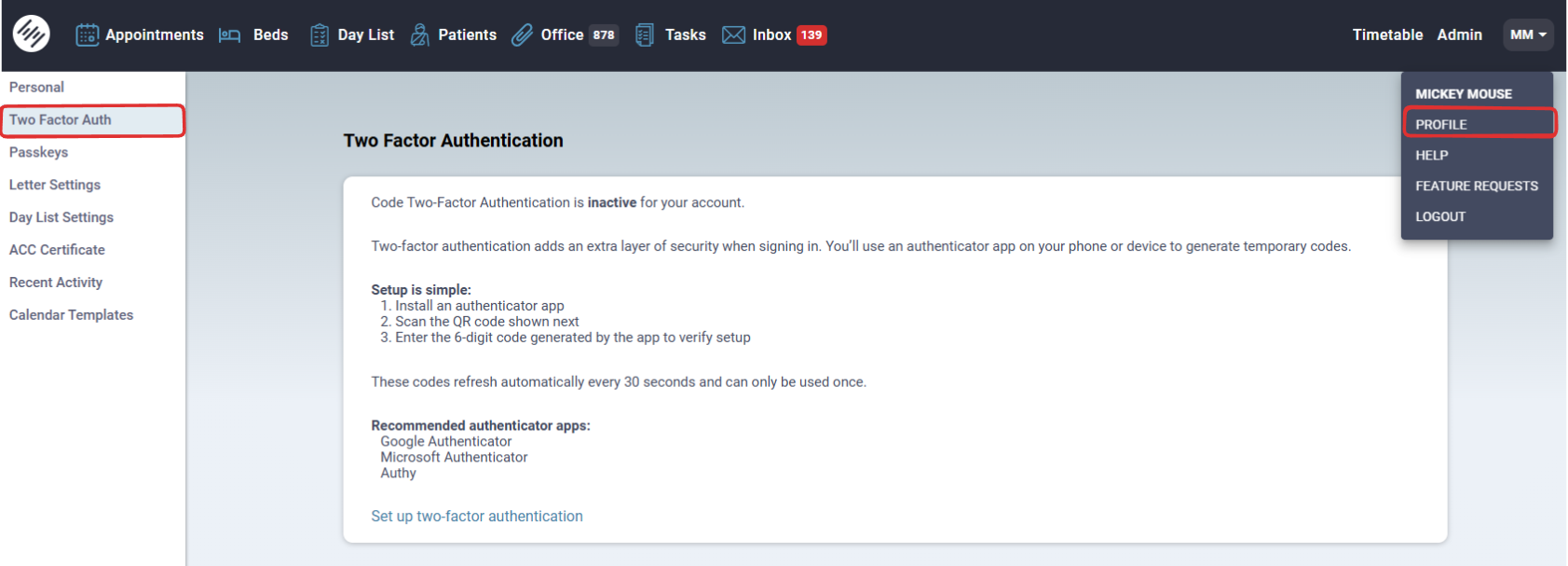
Go to your Profile > Two Factor Auth.
-
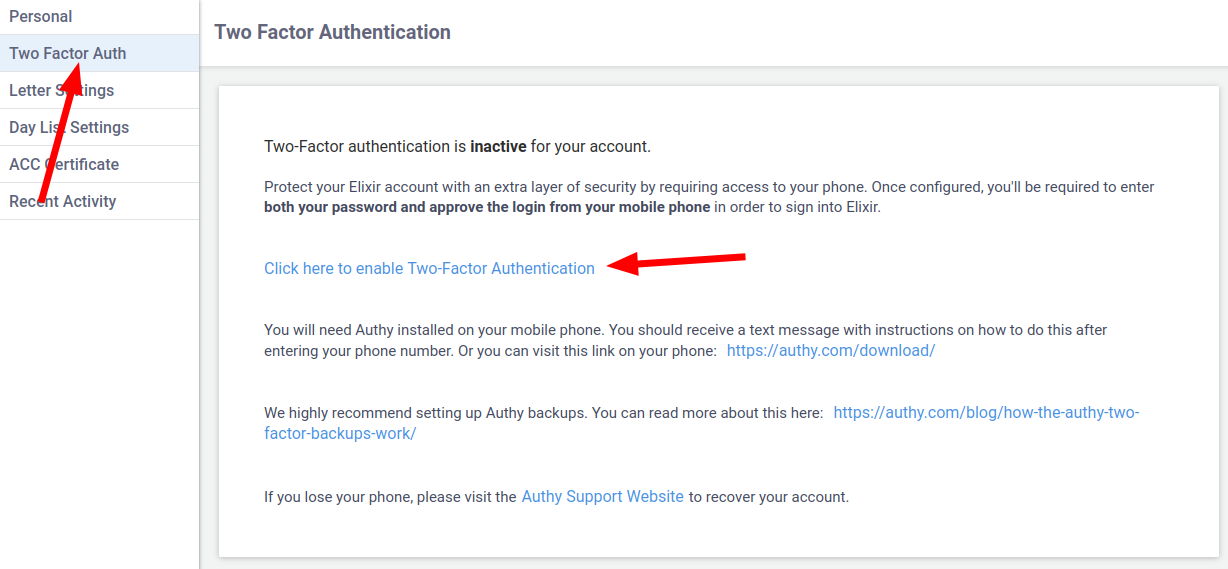
Click ‘Set up Two-Factor Authentication'.
-
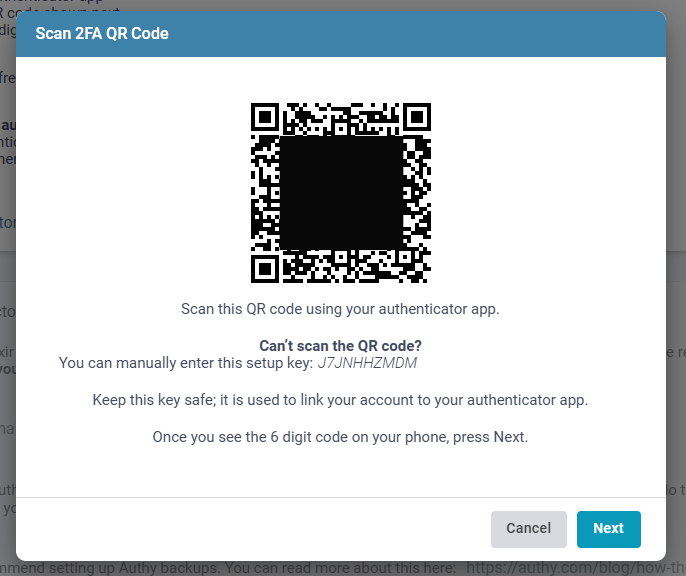
Navigate to your preferred authentication app (Microsoft Authenticator, Google Authenticator, Authy, or another app of your choice). Scan the QR code using the app's inbuilt scanner and click Next.
Warning
We recommend scanning the QR code directly in the authentication app, not from your camera.
-
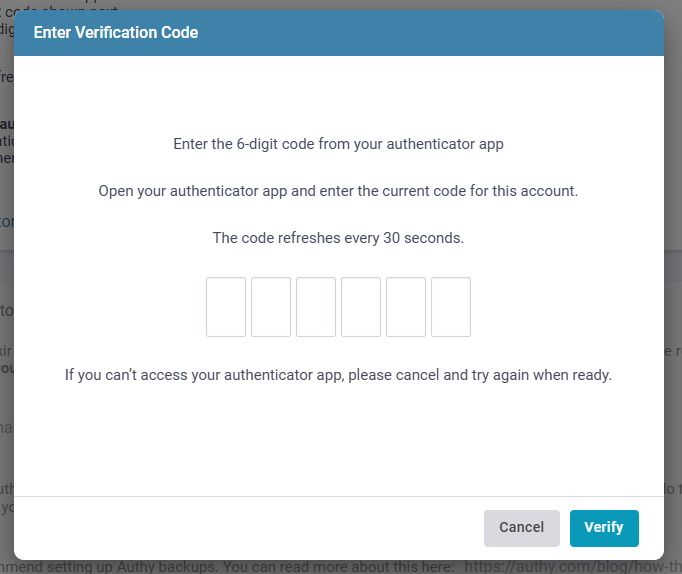
Enter the 6-digit code generated by the app and click Verify.
-
Once verified, you’ll see the confirmation message, click ‘OK’.
-
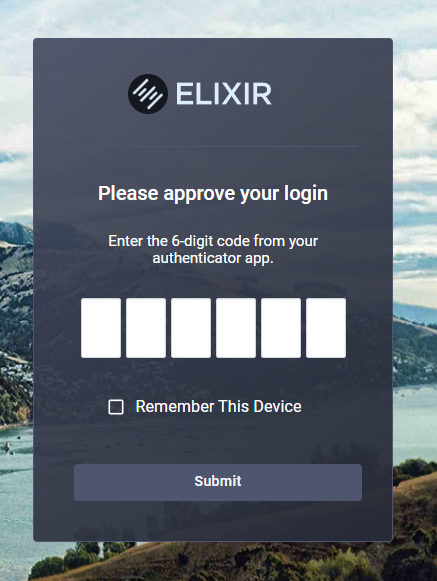
From then on, you’ll enter a 6-digit code found in the authentication app each time you log in.
Tip
Tick the Remember This Device box if you regularly use this device and want to skip the 2FA prompt for two weeks at a time. If you log into on a different device you will still get the prompt on the new device.
Recommended Authentication Applications
- Google Authenticator
- Microsoft Authenticator
Common Issues
Invalid Code Error
Investigate if this may be caused by the below issues: Time Synchronisation or Multiple 2FA Configurations.
Time Synchronisation
Two-Factor Authentication code relies on Time-Based One-Time Passwords. If your codes are failing, your device’s internal clock may have drifted. To fix this issue, navigate to your device's Date & Time settings.
- Android: Settings > System > Date & Time, turn on 'Automatic date and time/ Automatic time zone'.
- iOS: Settings > System > Date & Time, turn on 'Set Automatically'.
iOS Devices & 'Passwords' App
Scanning a QR code from the camera on iOS devices automatically takes you to the system's authenticator app ‘Passwords’ when setting up Two-Factor Authentication. If you are wanting to use a different authentication app, please navigate to your preferred app directly and scan the QR code with the app's inbuilt scanner.
If you are using 'Passwords' as your authentication app, after scanning the QR code you will need to manually enter your Elixir details to save the 2FA configuration. See the following instructions on how to find codes in your 'Passwords' app for future logging in.
-
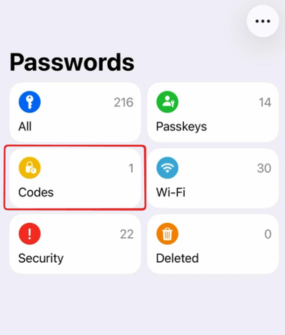
Navigate to the 'Passwords' application on your iOS device and click Codes.
-
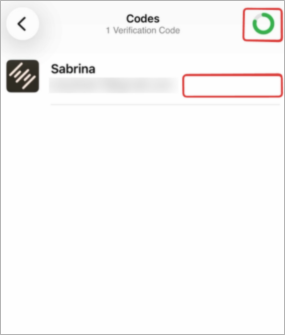
You will find the codes on the Elixir tab with your details. Codes refresh every 30 seconds.
-
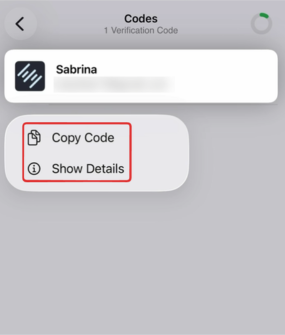
Click on the Elixir tab to copy a code or edit your Authentication set up.
FAQs
'I accidentally deleted my Elixir 2FA configuration from my authentication app'
Please contact our Support Team for assistance setting up a new configuration.
'I have multiple Elixir 2FA configuration on one or more apps'
If you have enabled/disabled and set up your Elixir 2FA configuration multiple times, past and therefore out of date configurations may still exist in your authentication app/s. If codes from these are entered when logging in to Elixir, it is will results in the error 'invalid code'.
- Investigate what authentication apps are on your phone and if multiple Elixir configurations exist. Ascertain which configuration is current by testing the codes and delete the others.
- To prevent this issue occurring again, ensure past configuration are deleted when your Elixir 2FA is reset and before setting up a new configuration.
'My 2FA configuration has disappeared from my authentication app'
If you are using an iOS device, please check the 'Passwords' app if it have been saved or moved here.