Patient Lists
Patient Lists help you track patients through multi-step administrative and clinical workflows, such as waiting for surgery or waiting for an ACC invoice. You can see at a glance where each patient is up to, how long they've been waiting and what needs to happen next, making it easy to monitor and audit their journey.
Lists are set up by your clinic administrator. For creating and editing lists, see Admin > Patient Lists.
These can be found by clicking Office, then choosing Patient Lists on the left.
Each row shows the date the patient was added, the patient, the list they're on, their priority, the Consultant, how many days they've been waiting, and the actions available.
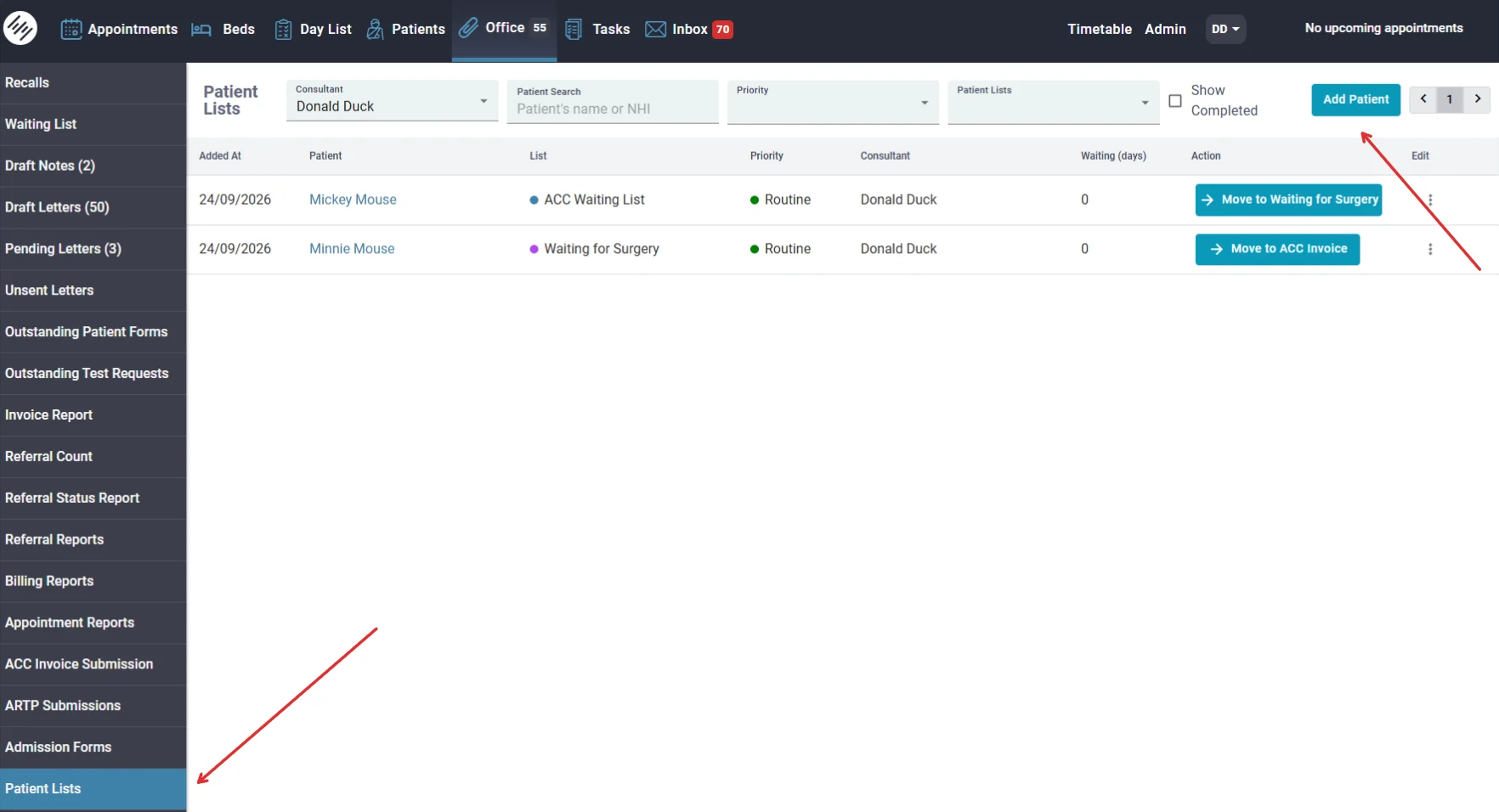
You can filter the view by:
- Consultant
- Patient Search using the patient's name or NHI
- Priority
- Patient Lists
Tick Show Completed to include patients who have already been completed.
Adding a patient to a list
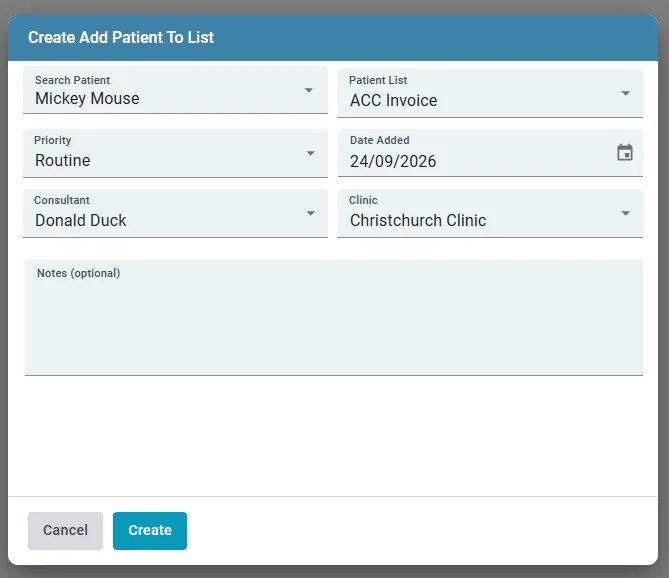
- Click Add Patient.
- Search for and select the patient.
- Choose the Patient List.
- Set the Priority to Routine (the default), Medium or High.
- Check the Date Added. This defaults to today and is used to calculate waiting days.
- Select the Consultant and Clinic.
- Add any Notes (optional).
- Click Create.
Completing a list action
The action button on each row depends on how the list has been set up:
- Move to [list name] completes the action and moves the patient to the next list. This also removes them from the current list.
- Mark complete completes the action and removes the patient from the list.
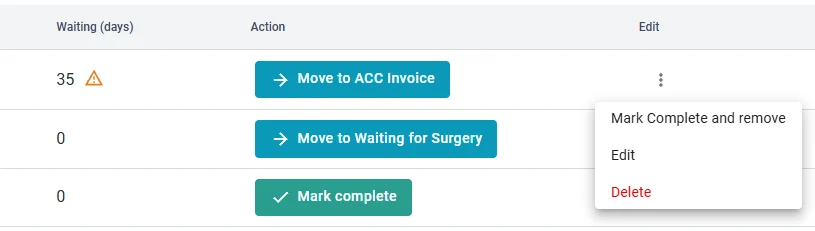
If a patient doesn't need the next list, click the three-dot menu in the Edit column and choose Mark Complete and remove. This removes the patient from the current list without moving them on.
From the same menu you can also Edit the patient's list entry or Delete it.
Warning
A warning symbol next to the waiting days means the patient has been on the list longer than the list's threshold. Review these patients first.
Patient Lists on the patient profile
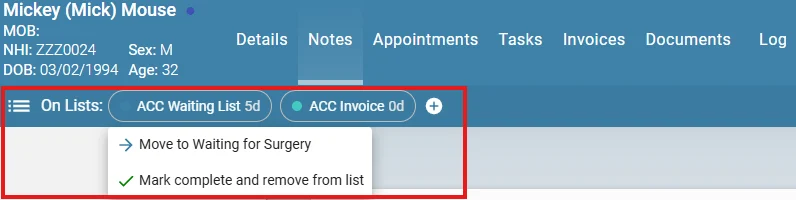
You can also view and manage a patient's lists from their profile. The On Lists bar below the patient's details shows every list the patient is on, along with how many days they've been waiting on each.
- Click a list to choose the next action, for example Move to Waiting for Surgery or Mark complete and remove from list.
- Click the + icon to add the patient to another list.