Patient Lists
Patient Lists help you track patients through multi-step administrative and clinical workflows, such as waiting for surgery or waiting for an ACC invoice. This page covers setting up your lists. For adding patients and working through lists day to day, see Office > Patient Lists.
These can be found by clicking Admin, then choosing Patient Lists on the left under Setup.
The Patient Lists page shows every list set up for your clinic, along with its next action, the number of patients currently on it, and when it was created and last edited.
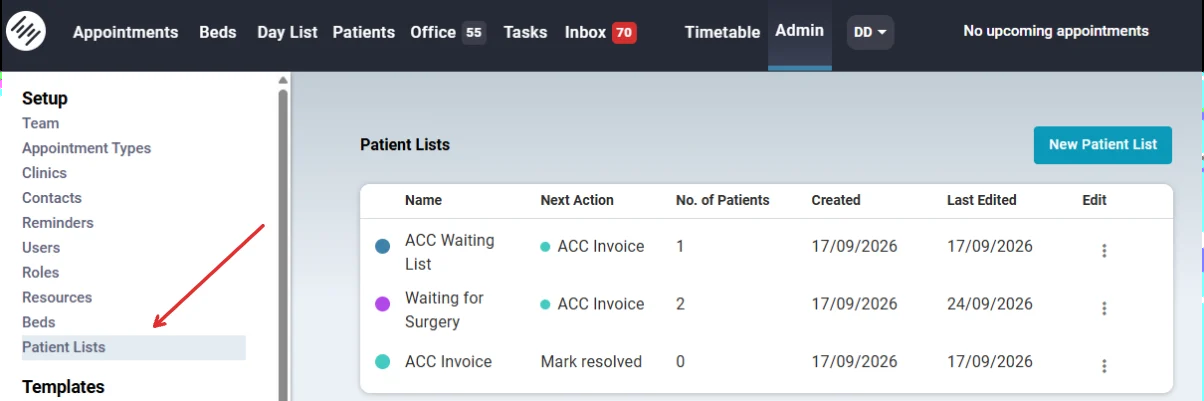
Creating a Patient List
- Click New Patient List.
- Enter a Name for the list, for example ACC Waiting List or Waiting for Surgery.
- Choose a Color. This colour is used to identify the list throughout Elixir.
- Set the Days Threshold (warning). If a patient stays on the list longer than this number of days, a warning symbol appears next to their waiting days.
- Choose what happens under After action is complete:
- Mark as resolved - remove from the list removes the patient once the list's action is done.
- Move patient to another list automatically moves the patient to the list you select under Next List.
- Click Create.
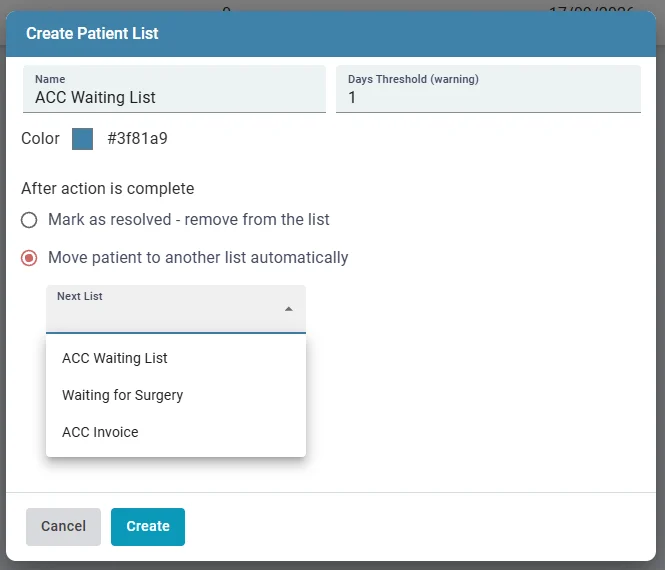
Building a workflow
Chain lists together to build a workflow. For example, ACC Waiting List can move patients to Waiting for Surgery, which then moves them to ACC Invoice. The final list in the chain should be set to Mark as resolved.
Note
To create a chain, set up the last list first. A list must already exist before you can choose it as the Next List.
Editing a Patient List
To change a list's name, colour, threshold or next step, click the three-dot menu in the Edit column beside the list.