ACC Invoice Submission
Submit invoices directly to ACC using your configured billing settings and valid ACC requirements.
Setup
Before you can submit invoices to ACC, make sure the following is set up correctly:
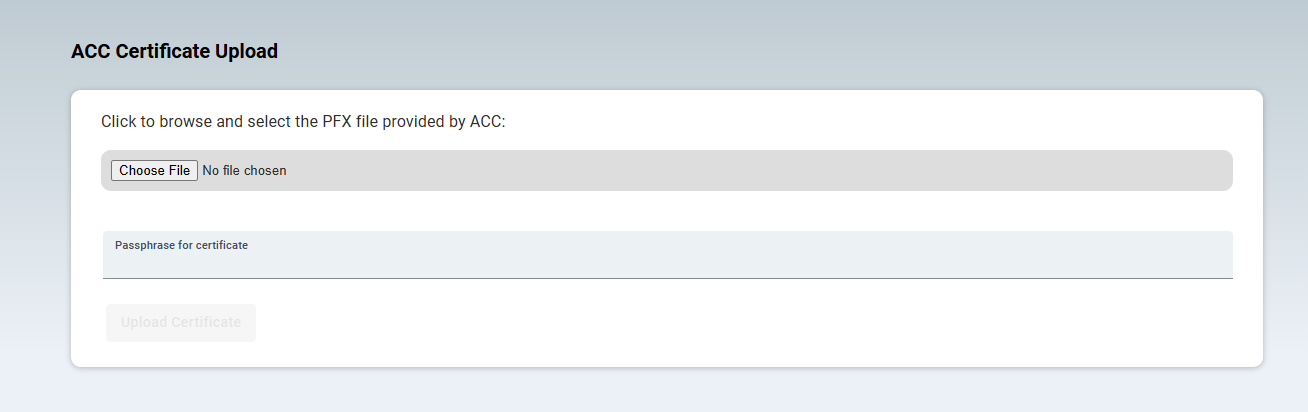
1. Upload ACC certificates
- Upload a valid ACC certificate to either: the team, or an individual consultant
- If a consultant does not have their own certificate, the team certificate will be used automatically
Admin > ACC > ACC Certificate
2. Set Facility ID
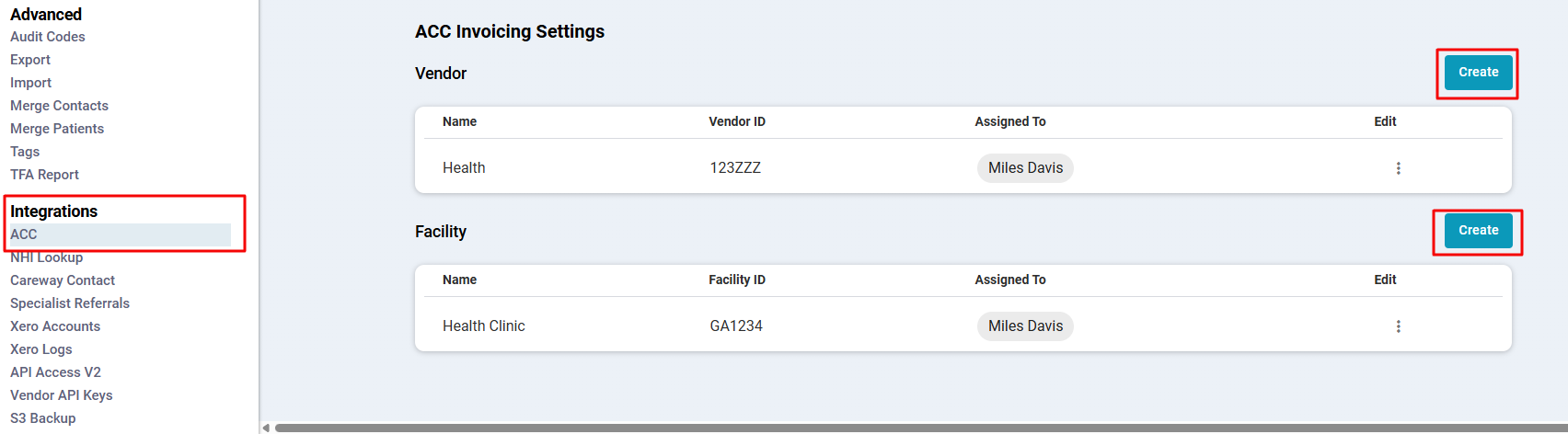
- Go to: Admin > ACC > ACC Invoicing Settings
- Create a new Facility ID and assign it to users.
3. Set ACC Vendor ID
- Go to: Admin > ACC > ACC Invoicing Settings
- Create a new Facility ID and assign it to users.
4. Create ACC billing contact
- Go to: Admin > Contacts
- Create a new ACC billing contact
Tip
We recommend creating a new ACC submission contact (rather than reusing an existing “ACC billing (old)” contact). This is because invoices linked to the previous ACC billing contact will continue to appear in the ACC invoice submissions list. Creating a new contact helps you: Start fresh with new ACC submissions, avoid mixing old and new invoices, keep ACC submission tracking clean and easier to manage.
5. Select ACC contact in invoices module
- Go to: Office > ACC Invoices
- Select the created ACC contact from the dropdown

Creating invoices to ACC
Once setup is complete, follow these steps:
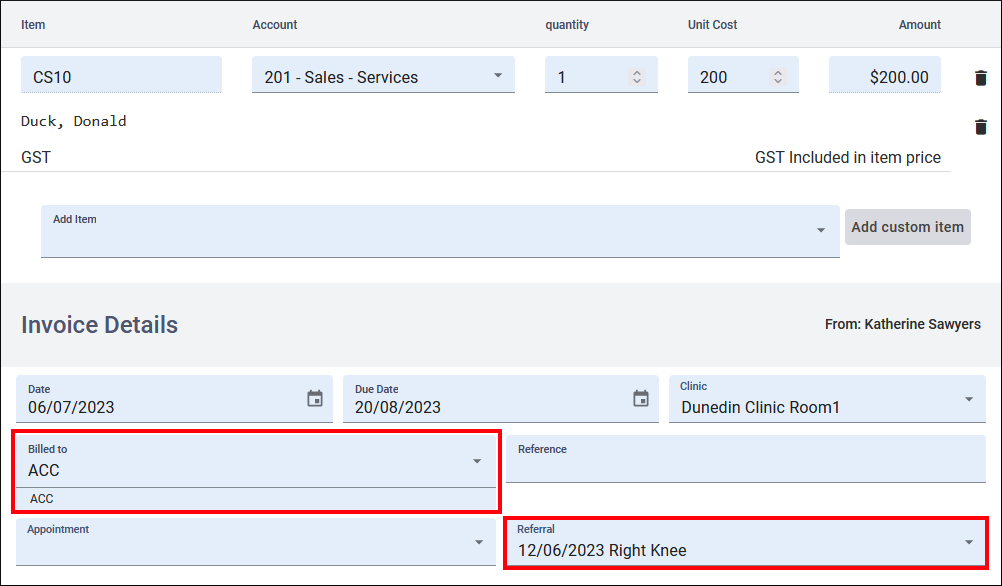
- Create an invoice for each patient. From Patient > Invoice or Office > Invoice Report
- Select your created Contact in the Billed to field.
- Select the Referral relating to the consult.
Reminder
Ensure the patient has an active Referral and you have added a Claim Number to the referral. This pulls the claim number through to the invoicing schedule.
- Invoice items must include ACC service codes only
Submit invoice(s) to ACC
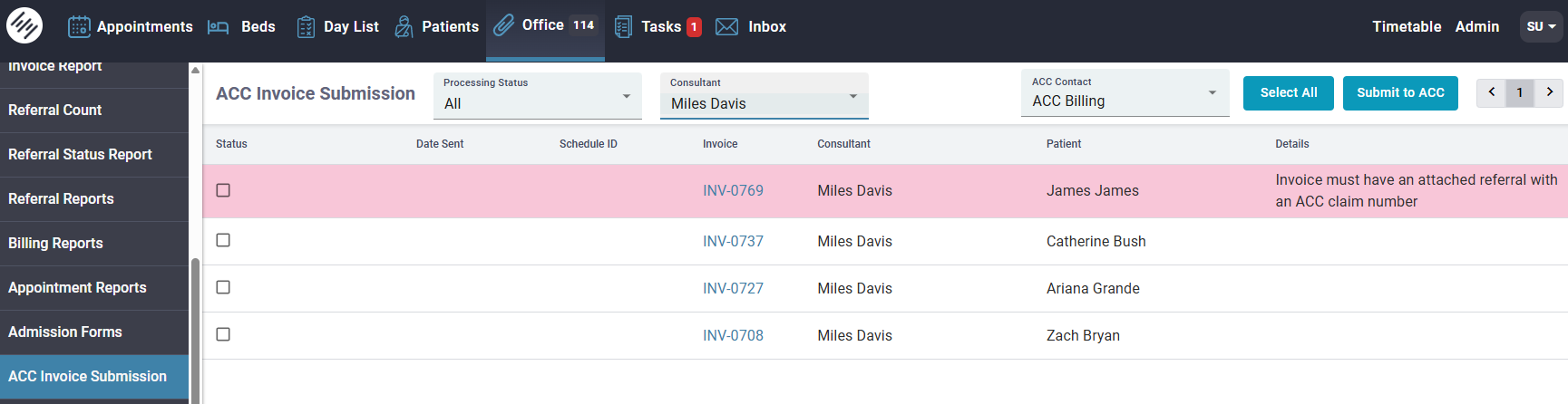
- Go to: Office > ACC Invoice Submission
- Find the invoice(s)
- Select checkbox(es)
- Click Submit to ACC
You can:
- Submit one or multiple invoices at once
- Use filters by consultant and status
- Select all invoices
Note
You can find more information on how to submit invoices to ACC here: ACC Invoice Submission