Appointments
Click Appointments in the top navy navigation bar to view the appointments calendar.
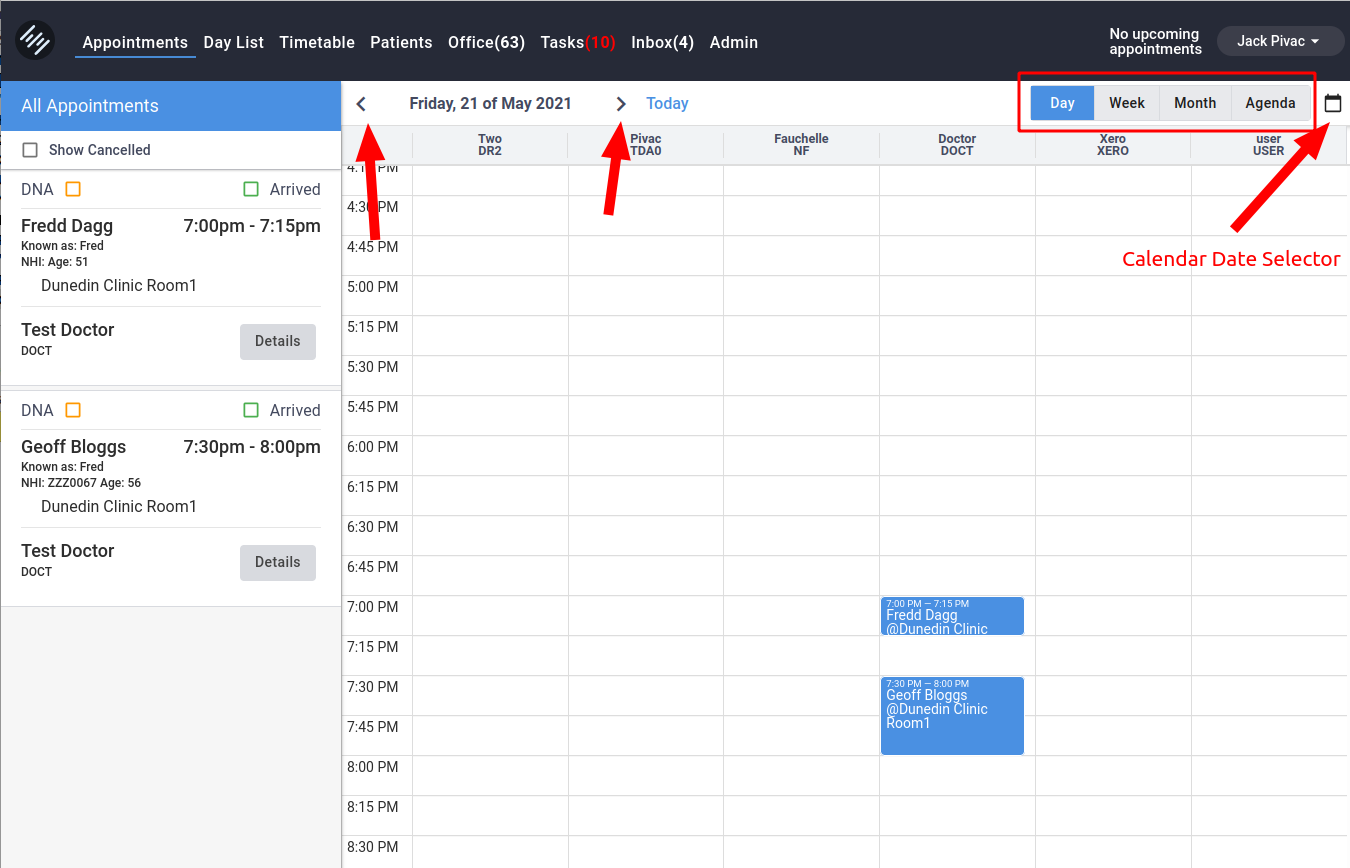
- Switch back or forward a day using the < and > buttons around the date.
- Click Today to jump back to today.
- Change to another date using the calendar selector (top left)
- Switch between Day, Week, Month and Agenda views using the buttons top right.
Create an appointment
- Click in any empty time slot
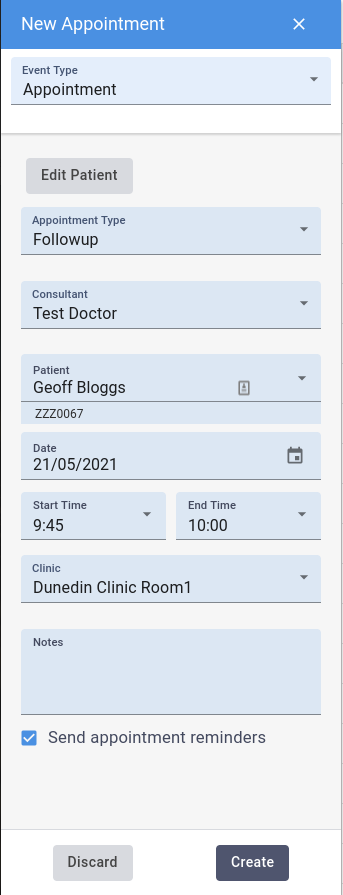
- In the Find Patient box type the name or NHI of the desired patient.
- Click Edit Patient if you want to edit any patient details (check/update contact details for example).
- Select an Appointment type if required. Appointment types can be automatically selected if you are using Appointment Slots
- Adjust date and start/end time if required. Selecting an Appointment Type will automatically adjust the end time of the appointment to suit the Appointment Type Length.
- Add a Note if required. This will display on the Agenda
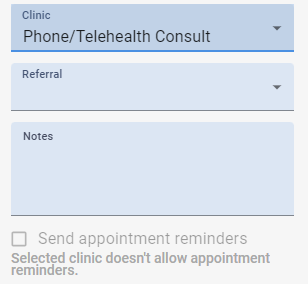
- Ensure the Sent appointment reminders box is ticked to automatically send your configured Appointment Reminders
- Click Create to create the appointment. Press Discard or the X at the top if you want to cancel creating the appointment.
Tip
You can click and drag to make a longer appointment.
Resend Reminders
You can resend a reminder from the Patient Log
Reminder
When you are creating appointments linked to clinics that have appointment reminders disabled, the "Send appointment reminders" check box will be greyed out.
Create an appointment task
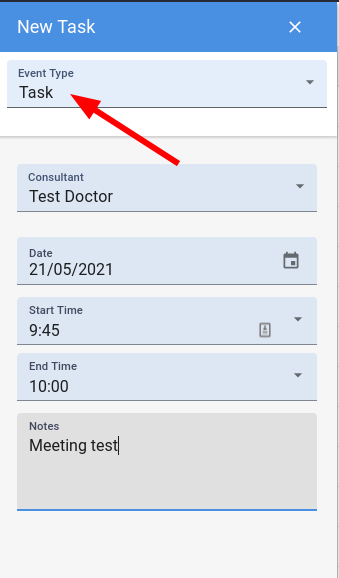
- Click to create a new appointment
- Change the Event Type to Task
- Adjust time if required
- Add any notes if required
- Click Create at the bottom
Create a Resource Booking
To create a booking in a resource calendar:
- In Day View, click on an empty time slot in the desired Resource column.
- In the Find Patient box, type the patient’s name or NHI.
- Select an Appointment Type if required.
- Select the Consultant.
- Confirm or select the Resource.
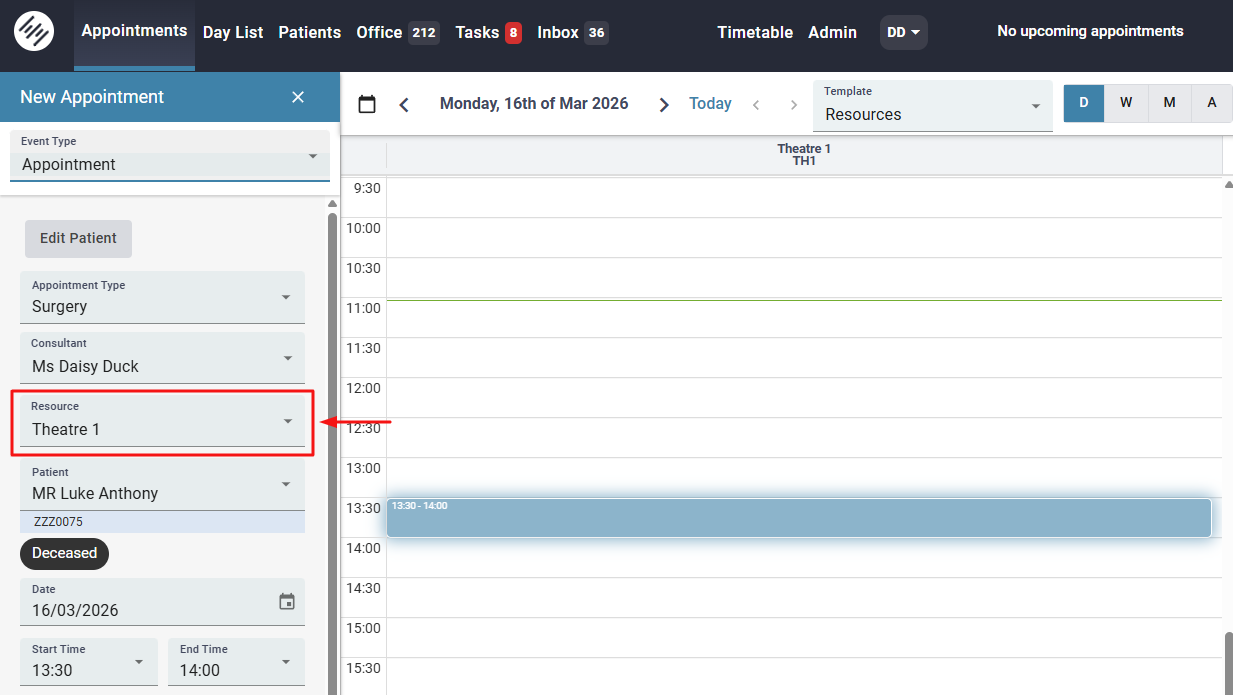
If a Timetable has been configured for the resource, the Consultant and Resource fields may automatically be populated.
- Adjust the date and start/end time if required.
- Selecting an Appointment Type may automatically adjust the appointment length.
- Add any Notes if required. These will appear in the Agenda view.
- Click Create to save the booking.
- Click Discard or the X at the top if you want to cancel creating the booking.
Reminder
Appointment reminders are not currently sent for appointments booked under Resources. In this initial stage of the Resources feature, reminders are only sent for standard consultant appointments. Appointments created through the Resource calendar will not trigger automated appointment reminders for patients. This functionality may be enabled in a future update.
Cancel an Appointment
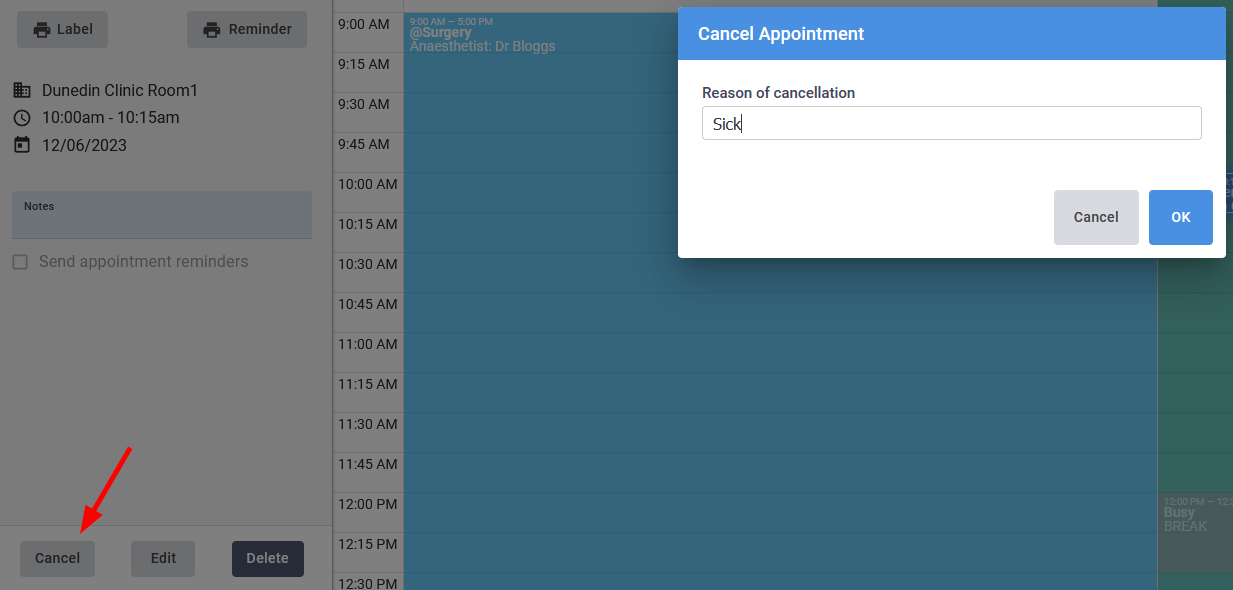
- Click on the appointment to bring up the details in the left pane
- Click Cancel at the bottom
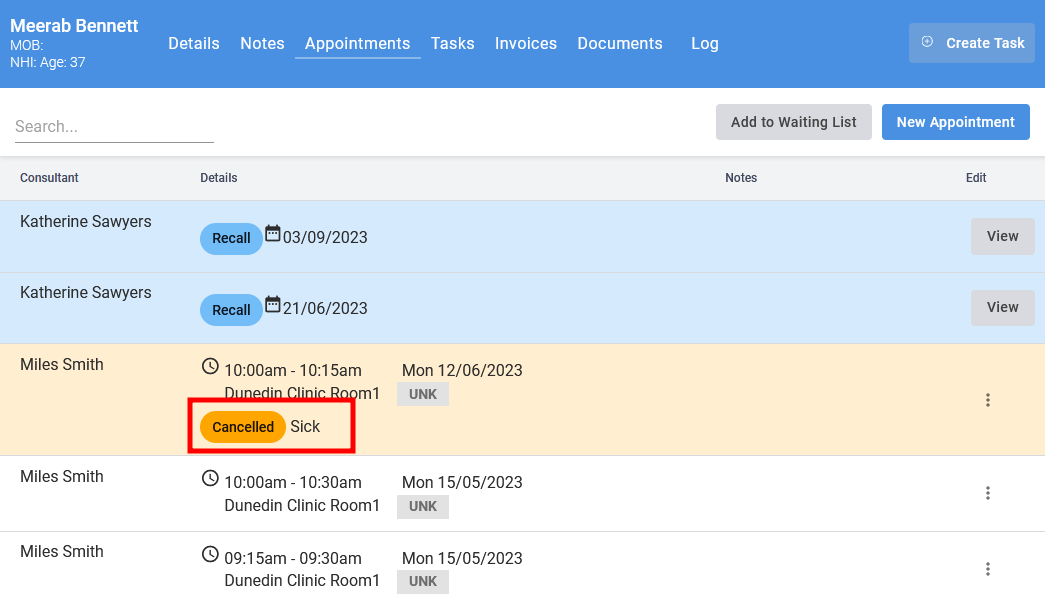
- Enter a reason for your cancellation. This will show up in the patients appointment history list.